Black Friday sale: 30% off Flywrite
Flywrite for course writers

Write your course
with your agent

Flywrite is the Markdown writing app for writing course lessons with AI on a Mac. Keep each lesson as a plain file in one course folder, run Codex, Claude Code or any CLI agent on it under the page, and roll back what the agent changed. No AI fee.

Mac appBring your own agent
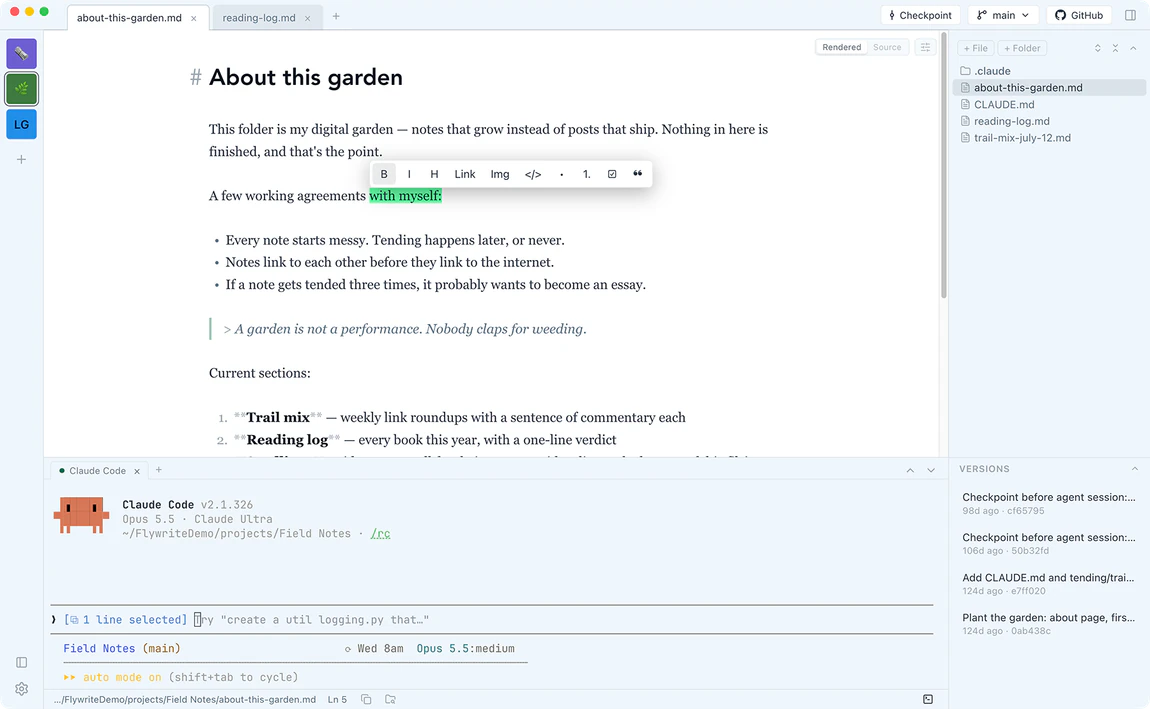
Your agent can draft the lessons. Keeping the course straight is the hard part.

A course is an outline, a lesson per module, exercises, code samples and images, written over weeks. An agent such as Codex or Claude Code can draft a lesson from the outline or check an exercise, if it can read the course.

In a chat window it can't. You paste lessons in one at a time, explain your audience again, and lose track of which draft you liked.

Every lesson goes through copy and paste

You paste a lesson into the chat and paste the answer back, one module at a time.

The rules get explained again

Your audience, reading level and lesson template aren't written down anywhere the agent reads, so every session starts by repeating them.

A rewrite you can't take back

The agent reworked three lessons when you asked about one, and the earlier drafts are gone.

A course, from outline to finished lessons, in Flywrite.

  1. Step 1: Make a course folder

    Choose New Project, or Open Folder if your lessons already exist. Keep the outline and one Markdown file per lesson in it.

  2. Step 2: Write the rules once

    Put your audience, reading level and lesson template in AGENTS.md for Codex or CLAUDE.md for Claude Code. The agent reads it when a session starts.

  3. Step 3: Draft a lesson with your agent

    Ask for a first draft from the outline, or a pass on one exercise. Read the lesson in Rendered view as the agent edits it.

Everything you need to write a course with your agent.

A page styled for long sessions

Write each lesson in Rendered view, with Source view one keystroke away (⌘E). Set the theme, fonts, text size and page width for the course project or one lesson, in light or dark mode.

Codex, Claude Code or any CLI agent

Launchers start Claude Code, Codex and Cursor Agent, each in its own terminal tab under the page. Any other agent that runs in the Mac terminal runs here too, on the plan you already have.

Point the agent at one lesson

Claude Code gets the open lesson, line and selection with no setup. For Codex, type @ to pick a lesson, or select text and press ⌘⇧L to send it.

Restore any lesson from a checkpoint

Flywrite saves a checkpoint of the whole project when Claude Code starts in its terminal, and when Cursor Agent starts after its one-time setup. Codex and other CLI agents don't trigger it, so press ⌘⇧C before you start them. Restore one lesson or the whole course from the Versions panel (⌘⇧V).

The course, backed up to GitHub

One Sync button backs up the course to your own GitHub repository and keeps your Macs in step. You never write a git command.

The whole course in one folder

Lessons, outline, exercises and images are ordinary files, and ⌘P jumps to any lesson by name. Code files such as CSS and JavaScript open styled, and pasted images are saved into the course folder.

“Finally, a view and edit flow right in a great-looking package that's a pleasure to work with!”
Jeff R.
“I write a LOT of markdown but clunky IDE previews just made me miserable. Flywrite does everything I want: keyboard friendly, customizable, git backed. Perfect!”
David K.
“My favorite writing app, by far! I love how I can customize it exactly how I want.”
Cindy T.

One plan. Every feature.
Bring your own agent.

Black Friday: 30% off
$99per year

30% off at checkout with the Black Friday sale.

  • Flywrite for Mac: the full app, every feature
  • A real terminal under the page for Claude Code, Codex or any CLI agent
  • Checkpoints to roll back what the agent changed, and GitHub backup
  • All updates and new features for a year
  • Support from the maker of Flywrite
Buy Now

Instant download for Mac.

Questions from course writers

Does Flywrite publish to my course platform?

No. Flywrite is where you write the lessons. Paste finished lessons into your course platform. If your lessons have to be written inside the platform, keep drafting there.

Should I use Codex or Claude Code?

Either, or both in separate terminal tabs. Claude Code sees the open lesson and your selection with no setup. Codex doesn't see them on its own: type @ to pick a lesson, or select text and press ⌘⇧L. Write course lessons with the Codex CLI.

Can I get back an earlier version of one lesson?

Yes. Press ⌘⇧V for the Versions panel, expand a checkpoint and restore just that lesson, or restore the whole course; Flywrite saves a safety checkpoint first.

Can lessons include code and images?

Yes. Lessons are Markdown, so code blocks and image references stay plain text. Paste or drag an image in and Flywrite saves the file into the course folder and shows it in the lesson.

What does it cost?

Flywrite is $99 a year for Mac, with every feature and no AI fee. Your agent runs on the plan you already have.

Is there a Windows or iPhone version?

No. Flywrite is a Mac app, so it can feel like a native Mac writing app. For Windows, Linux or a phone, Obsidian, Typora or Ulysses fit better.

Why I built Flywrite

Hi, I'm Brian. I make my living writing: newsletters, YouTube scripts, courses. And these days, Claude Code is my collaborator on nearly all of it.

But I never liked creating in a code editor. Cursor and VS Code are built for shipping software. Prose deserves better than a clunky preview pane in a dev tool.

So I built the writing experience I actually wanted: calm and paper-like where I write, a real terminal right below it where my agent assists, and checkpoints to roll back what the agent changed, backed up to GitHub the way I'm used to. I hope you love writing in Flywrite as much as I do.

Brian CaselBrian CaselCreator of Flywrite@casjam

Write your next lesson in Flywrite.

Buy Flywrite for Mac